
FastSupport Installation Guide
Step 1: Go to the FastSupport Website
Open your web browser and go to:
Step 2: Enter Your Information
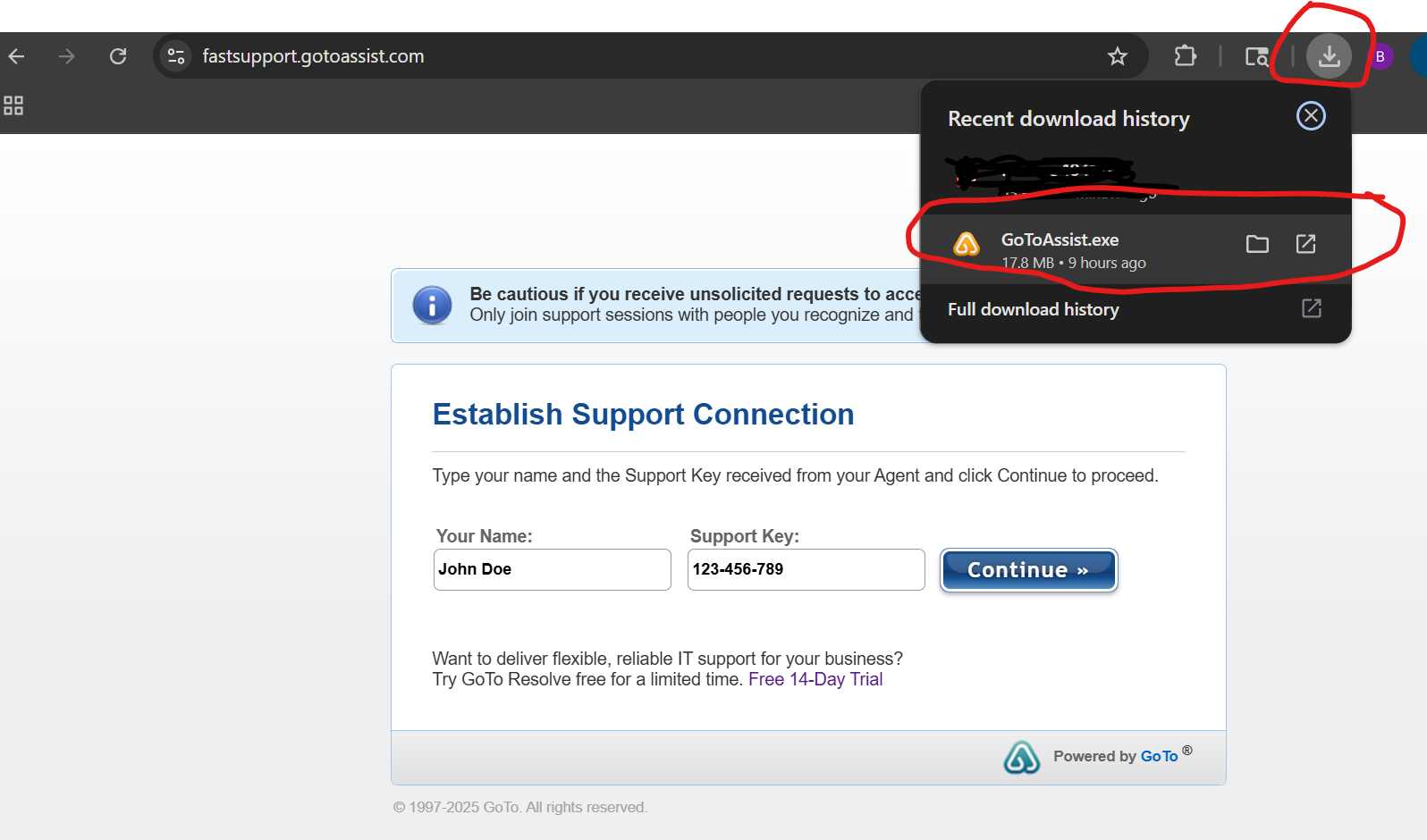
Type your name in the Your Name box.
Type the Support Key provided by your technician.
Click Continue.

Step 3: Download the GoToAssist Client
If prompted, click to download the helper application.
The file name may be GoToAssist.exe or similar.
Step 4: Run the Installer
Go to your Downloads folder.
Double-click the file you just downloaded.
If Windows asks, click Yes to allow changes.
Step 5: Approve the Support Session
A window will appear asking if the technician can view or control your screen.
Click Yes / Allow / Join Session.
Step 6: During the Session
You may see a toolbar. You can chat with the technician, stop sharing, or end the session.
Step 7: End the Session
When finished, click the “X” or End Session button.
Confirm you want to end the connection.
Optional: Install the Standalone App
If you join support sessions often, you can install the app permanently:
If you need help, ask your technician or email support@dmillerassociates.com.